ScholarAssist User Guide
1. Introduction
ScholarAssist is an intelligent academic data management system designed to assist researchers in organizing, analyzing, and reasoning over large-scale scholarly corpora. Beyond traditional reference management, ScholarAssis leverages agent-based AI to support open-ended and complex scholarly queries, such as research trend analysis and research idea exploration.
2. Getting Started
2.1 Create Your Account
To begin using ScholarAssist, first create a user account:
- On the login page, click the Sign up button.
- Complete the registration form:
- Username: Must consist of lowercase letters only (e.g.,
adctest). Special characters and uppercase letters are not allowed. - Name: Enter your full name.
- Email: Enter a valid email address.
- Password: Create a secure password.
- Username: Must consist of lowercase letters only (e.g.,
- Click Sign up to create your account and log in.
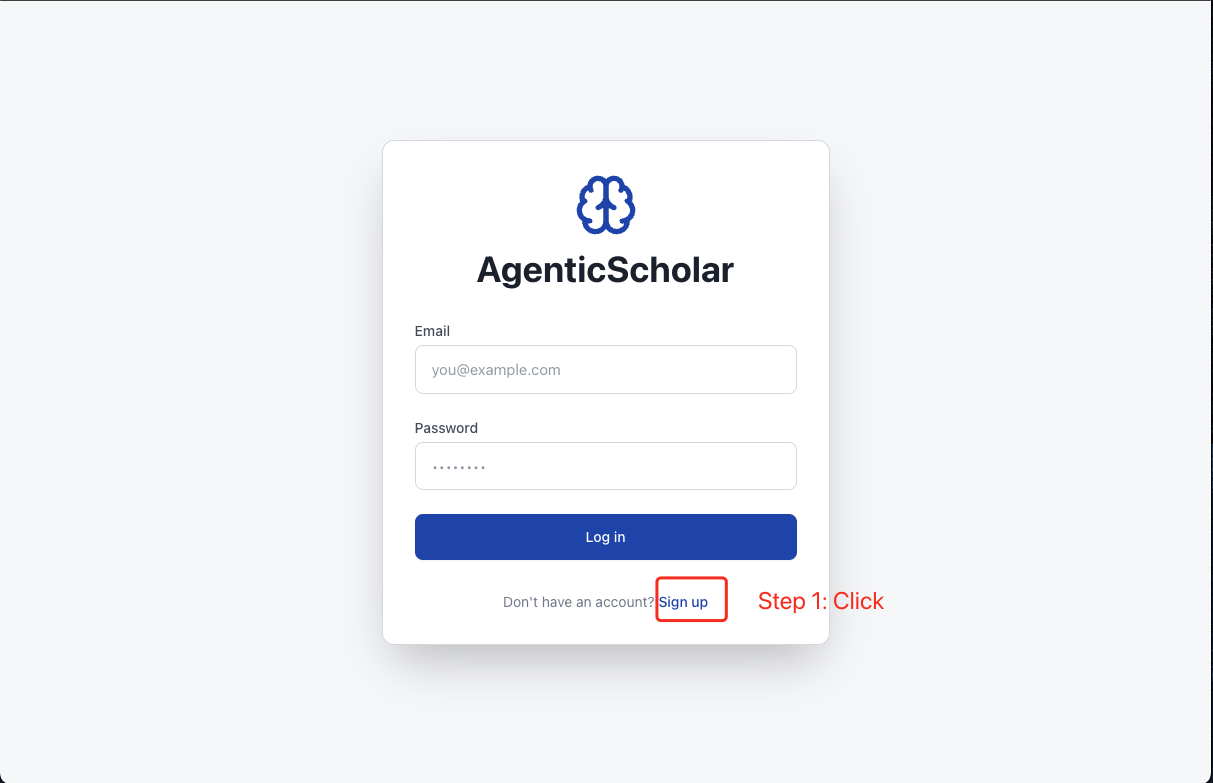
Click Sign up.
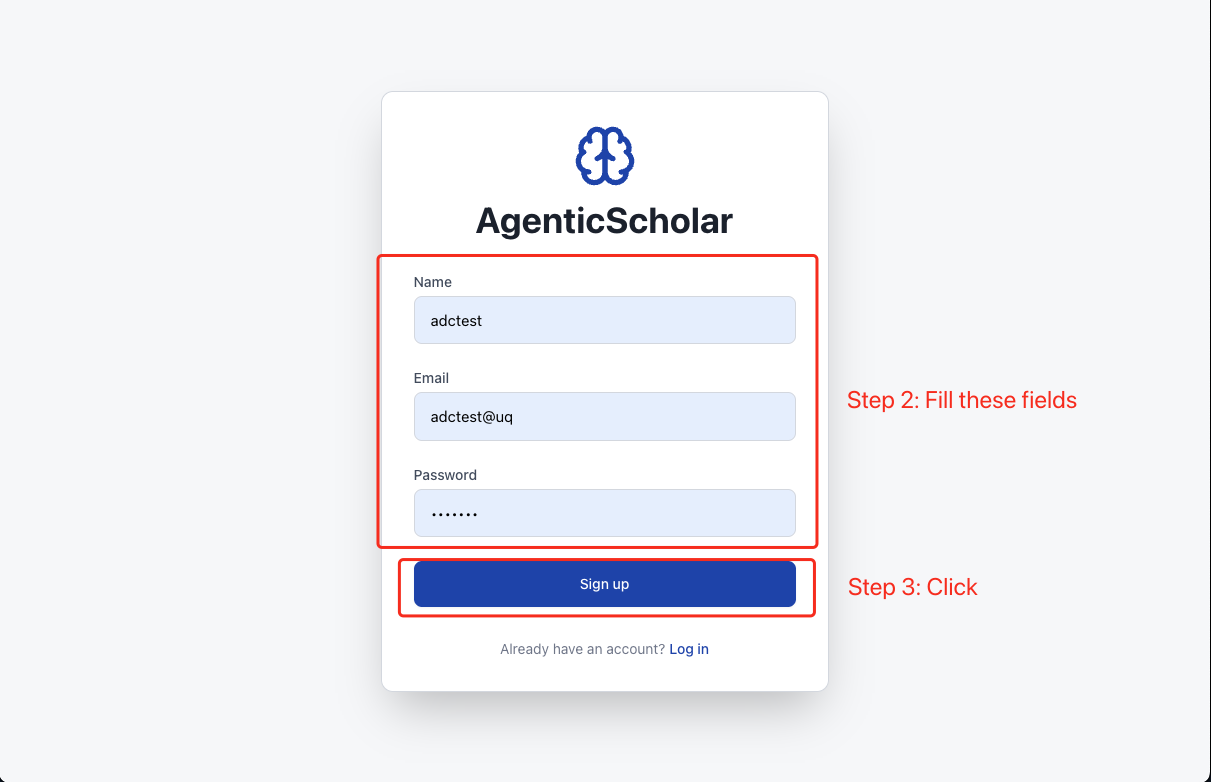
Fill registration form.
2.2 Familiarize Yourself with the Dashboard
After logging in, the main interface is divided into three primary areas:
-
Left Sidebar
This is your control panel for:- Managing Knowledge Bases
- Viewing paper lists
- Browsing taxonomy trees (e.g., Problems and Methods)
-
Center Canvas
This is your main working area where you:- Enter queries
- View system responses, including charts, tables, and textual answers
-
Right Panel
This area displays:- Your chat history
- The Execution Trace, which shows how the system processes your query step-by-step
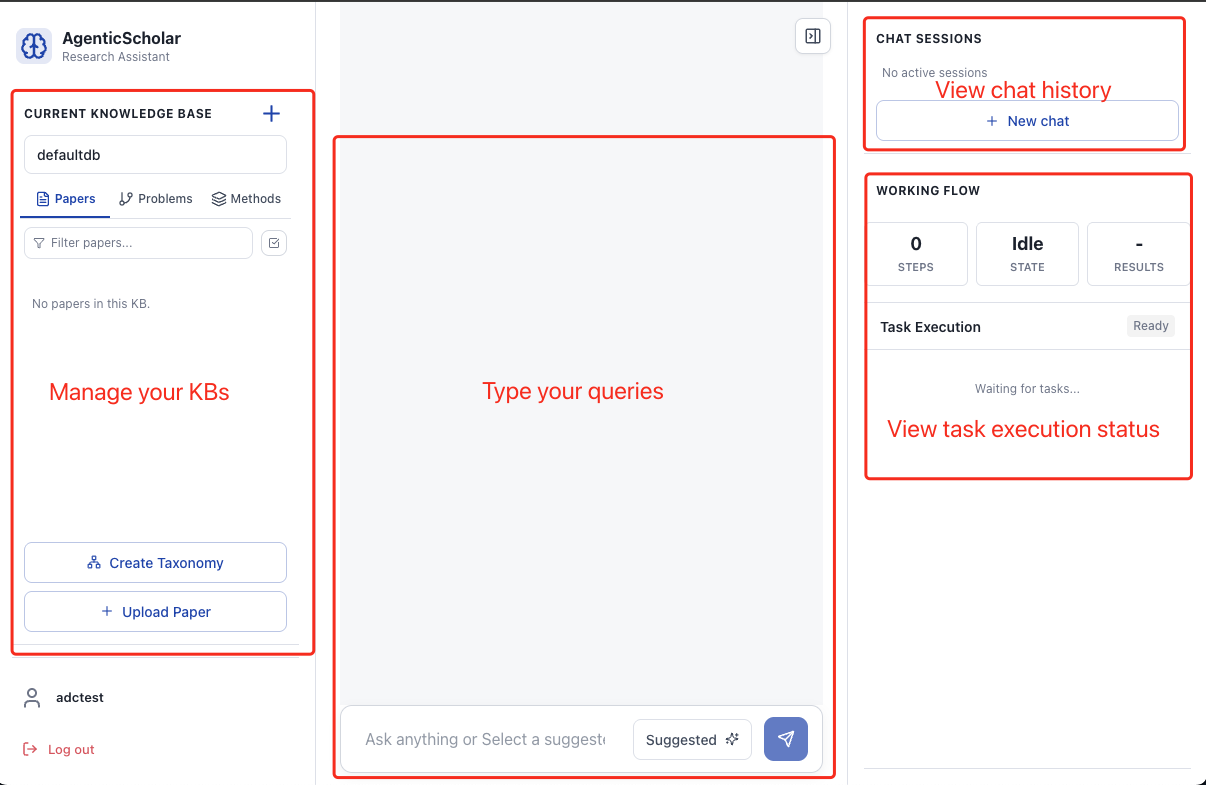
Dashboard overview.
3. Create a Knowledge Base
Before analyzing papers, you must create at least one Knowledge Base to store them:
- In the Left Sidebar, locate the Current Knowledge Base section.
- Click the + (plus) button.
- Enter a name for the new Knowledge Base (e.g.,
vector_search). - Confirm to create the Knowledge Base.
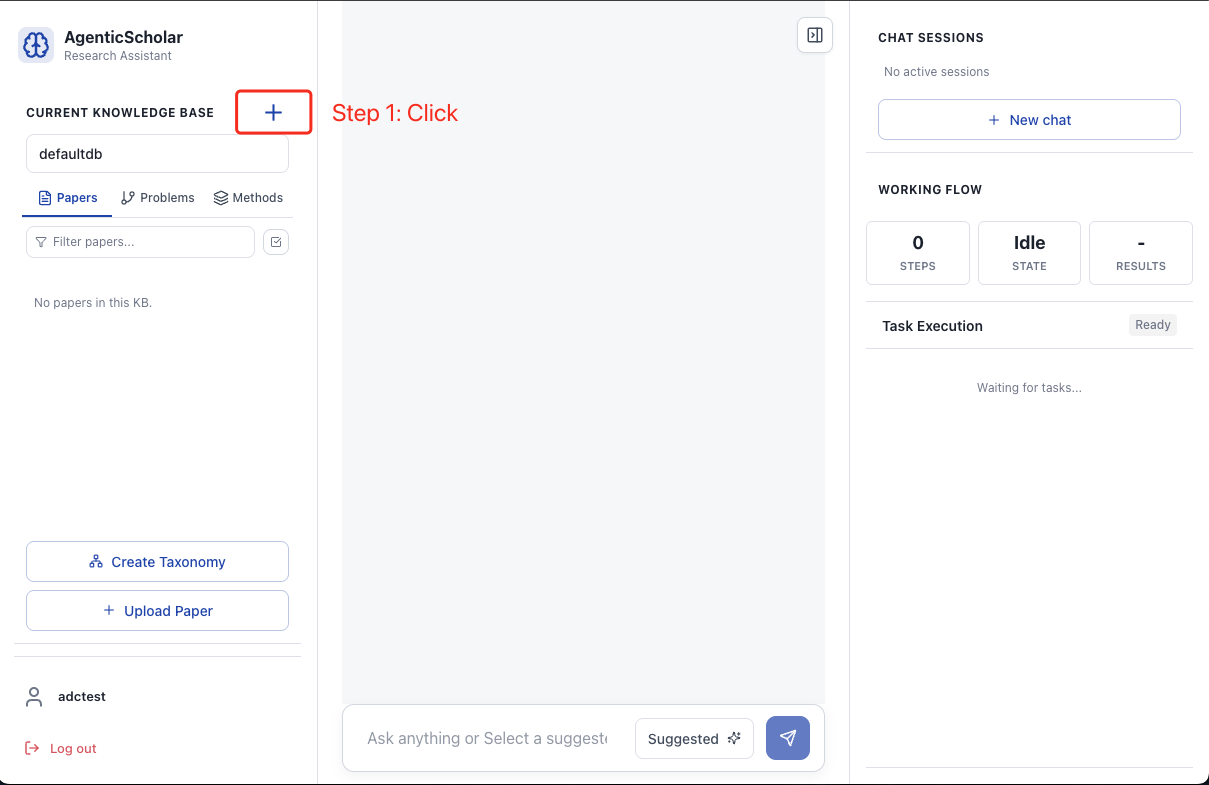
Click the + button.
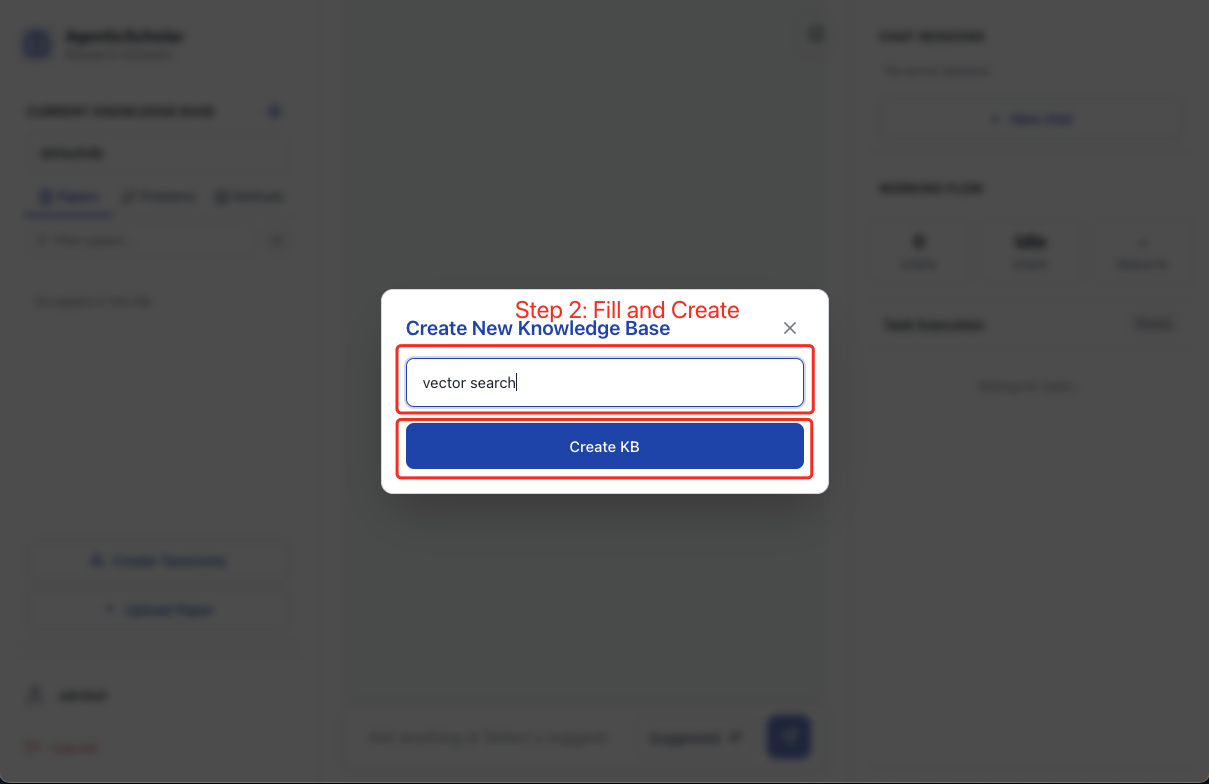
Enter a Knowledge Base name.
4. Upload Research Papers
Once a Knowledge Base has been created, you can populate it with research papers:
- In the Left Sidebar, select your target Knowledge Base.
- Click the Upload Paper button at the bottom.
- Select one or more PDF files from your computer to upload.
- Wait for the system to process the uploaded papers.
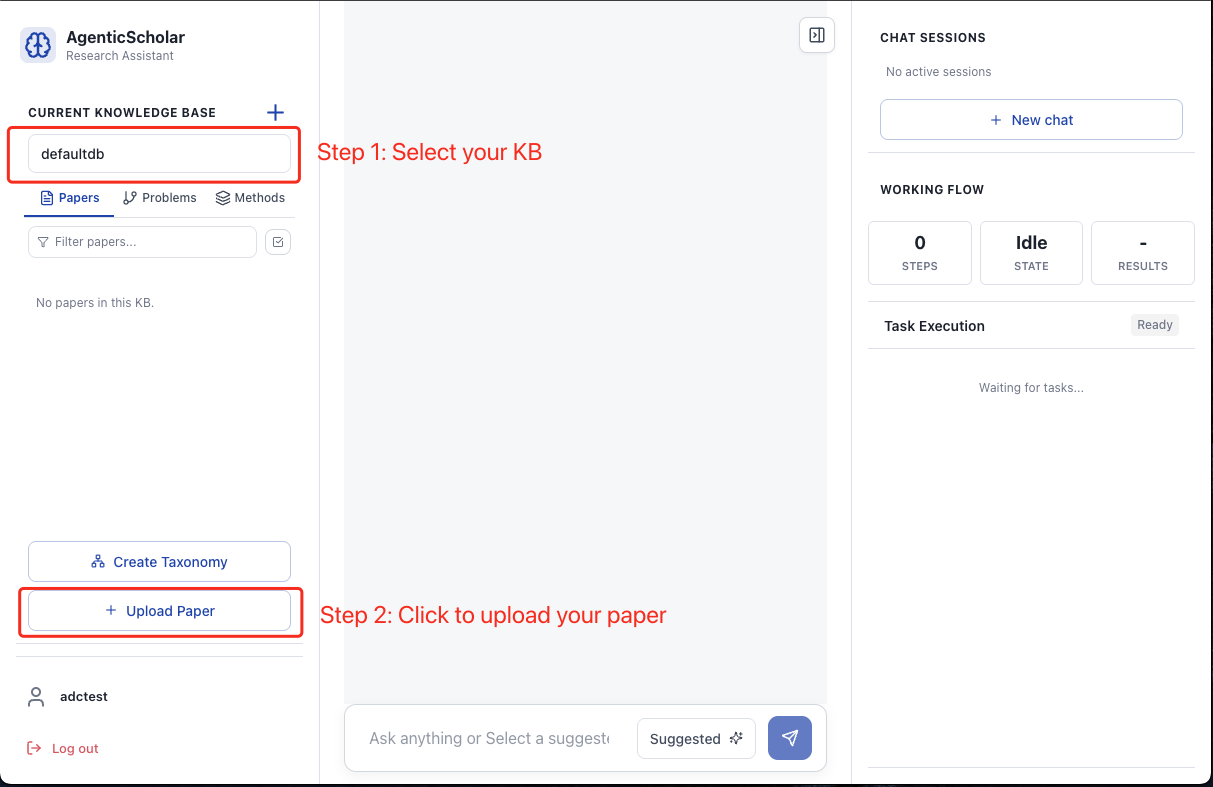
Upload papers.
5. Build an Academic Taxonomy
ScholarAssist can automatically organize your uploaded papers into a structured taxonomy:
- In the Left Sidebar, click the Create Taxonomy button (bottom-left corner).
- After the taxonomy construction is complete, select Problems or Methods to view the corresponding taxonomy tree.
- Click any node in the taxonomy tree to read its description.
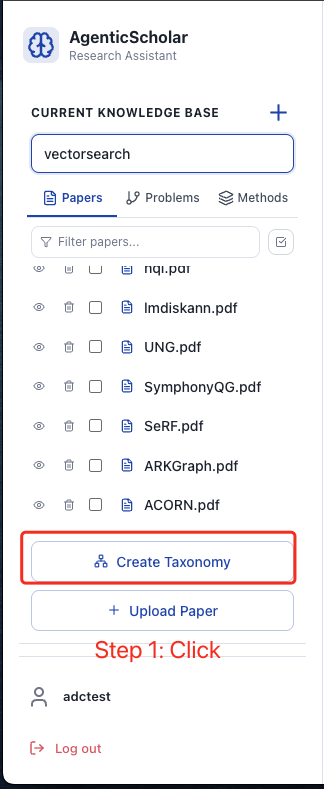
Click Create Taxonomy.
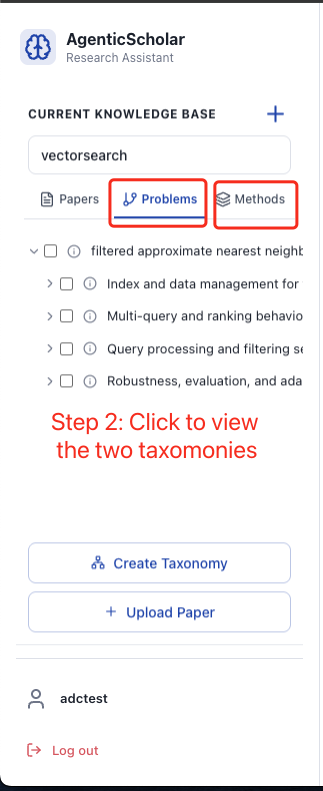
View the generated taxonomy tree.
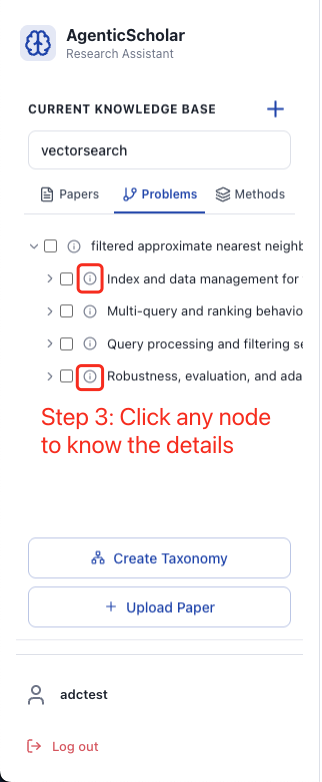
Explore the Methods taxonomy tree.
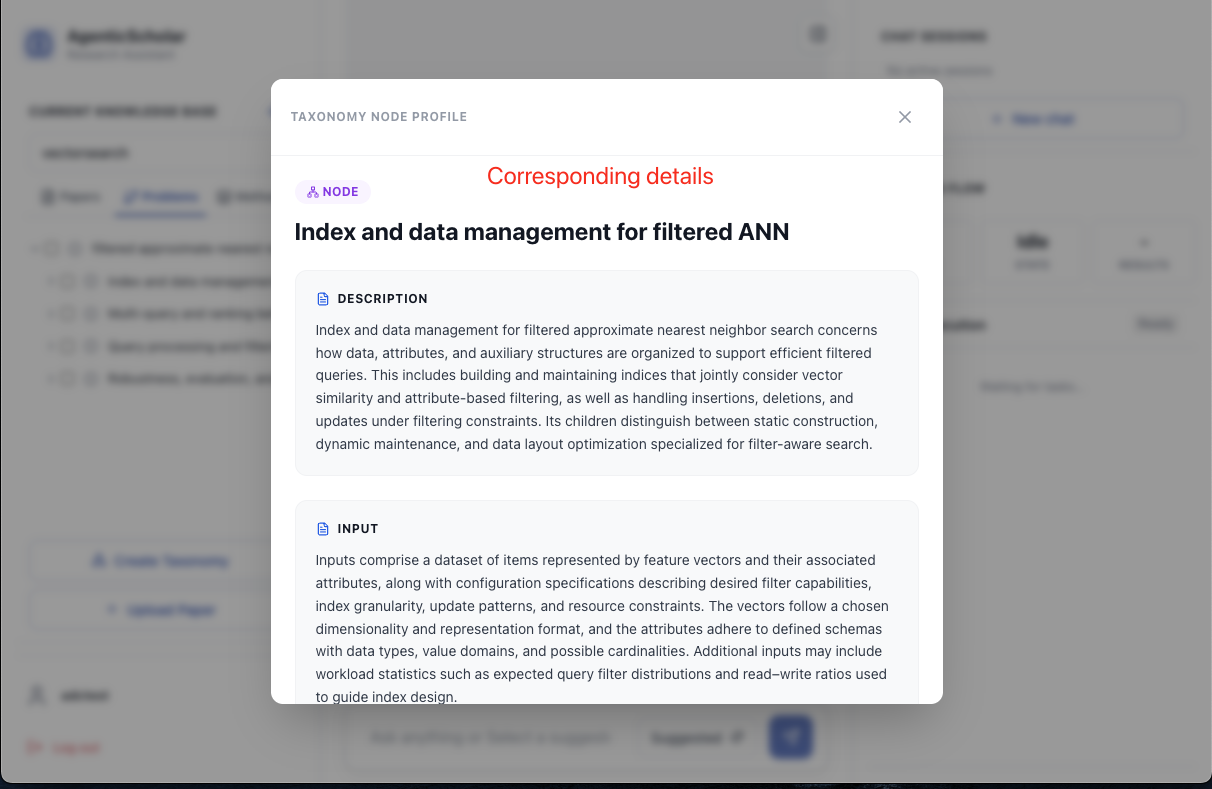
Click a node to read its detailed description.
6. Ask Scholarly Queries
ScholarAssist supports multiple modes of scholarly exploration, from single-paper analysis to topic-level reasoning over sets of papers.
6.1 Single Paper Exploration
Use this mode to analyze or query a single paper:
- Select the target paper from the paper list in the Left Sidebar.
- Then either:
- Click the Single Paper Exploration button under the suggested queries, or
- Directly type a query into the chat box, e.g., "Show me the experiment settings."
- The system returns an answer based on the selected paper.
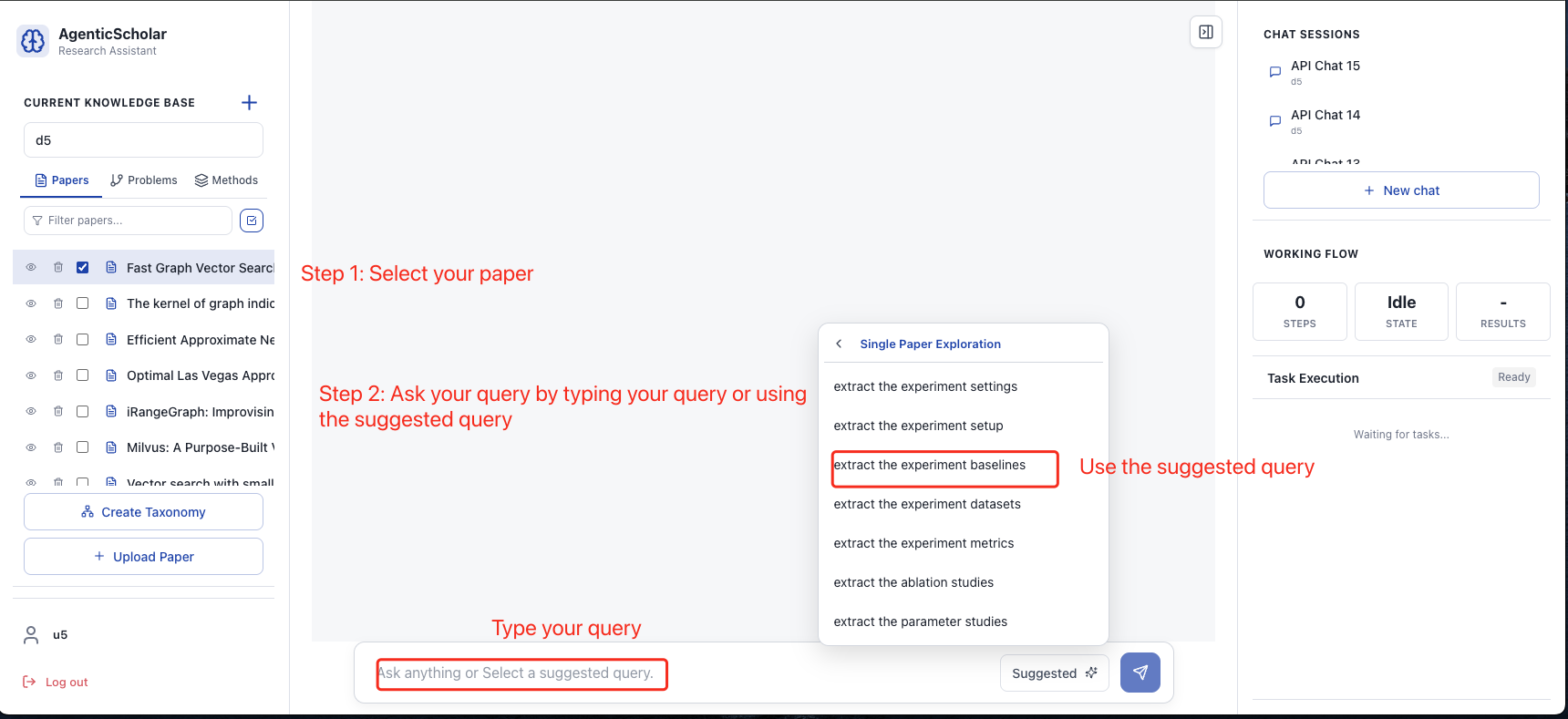
Single paper exploration.
6.2 Set of Papers Exploration
Use this mode to query a set of papers:
- Select all relevant papers you wish to analyze.
- Then either:
- Click the Set of Papers Exploration option from the suggested queries, or
- Type a query into the chat box, e.g., "Summarize the methods across these papers."
- The system synthesizes information across the selected papers to produce an answer.
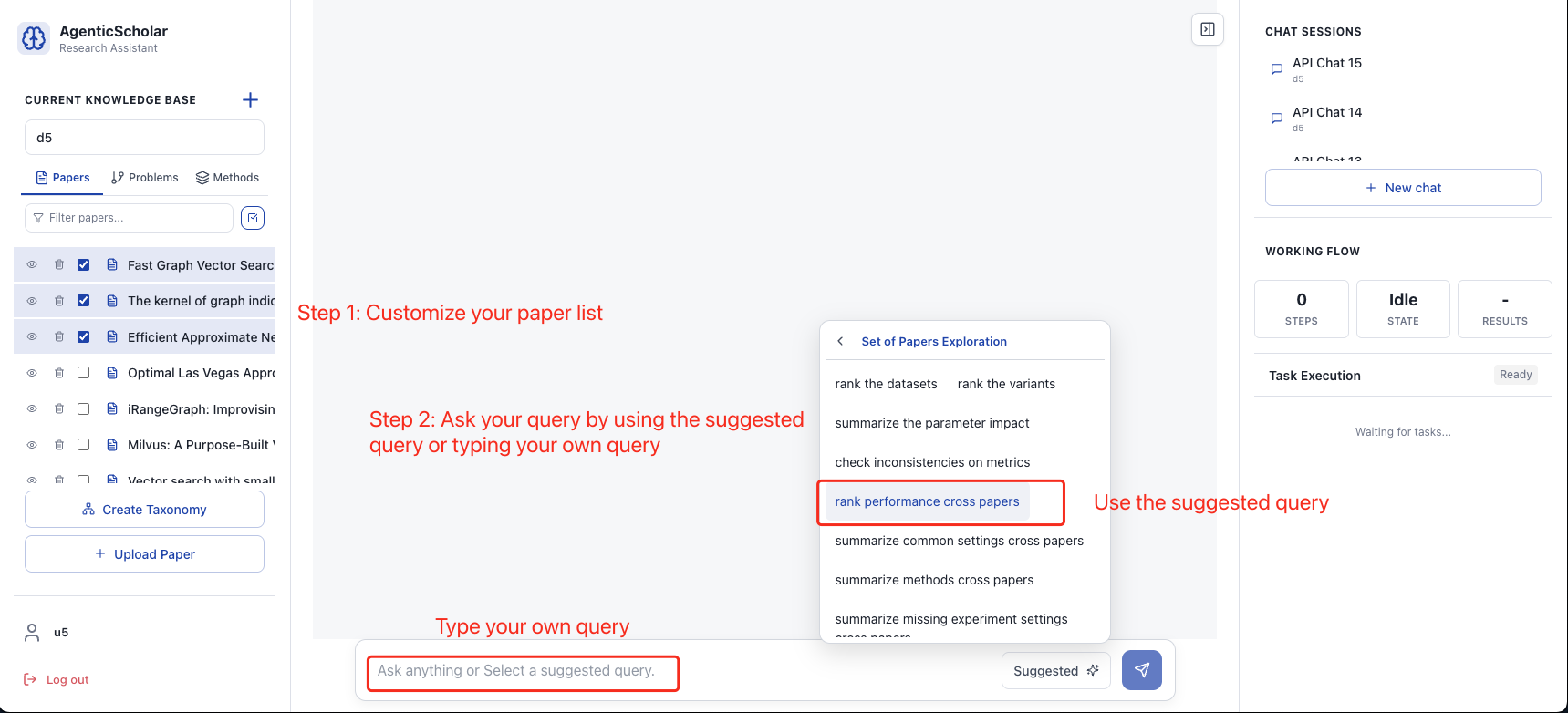
Set of papers exploration.
6.3 Topic-Level Exploration
Topic-level exploration leverages the constructed Problems and Methods taxonomies. ScholarAssist provides three typical topic-level query types:
6.3.1 Research Trend Analysis
Visualize how a research area evolves over time:
- In the taxonomy tree (Problems or Methods), select one or more target topics.
- Open the Suggested queries and go to Topic Level Exploration.
- Choose the query option for Research Trend Analysis.
- The system generates a trend analysis and presents the result in the Center Canvas.
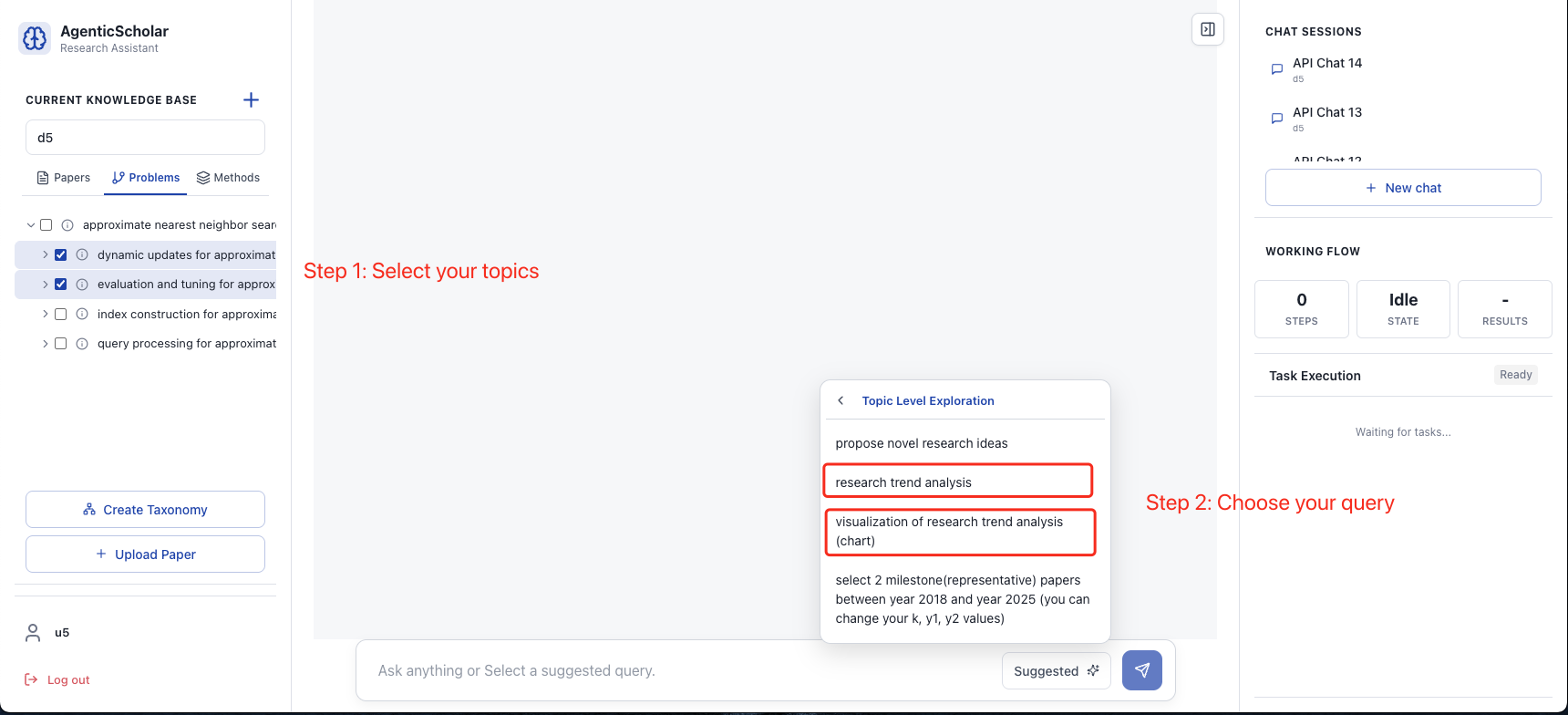
Select your topics for research trend analysis.
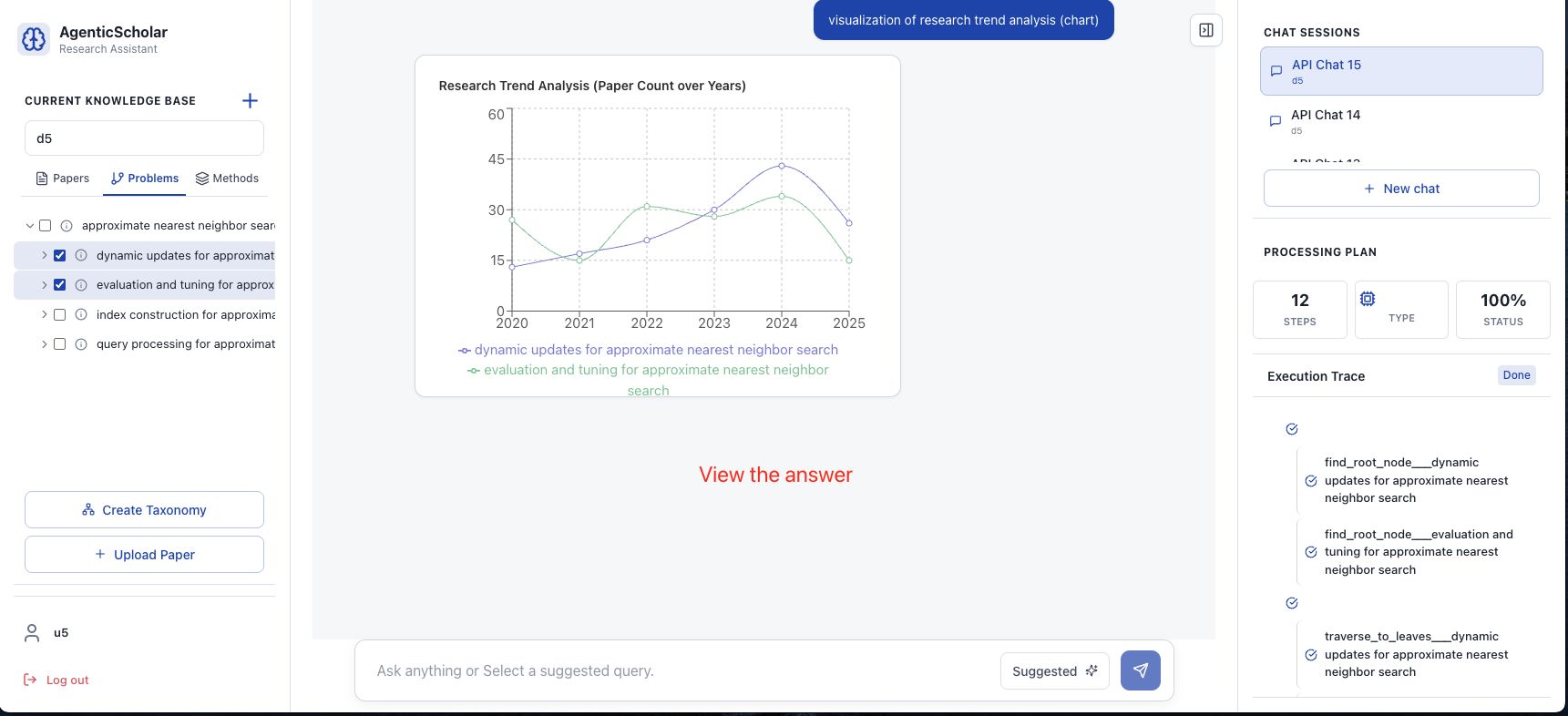
View the resulting trend chart.
6.3.2 Identify Milestone Papers
Identify the most influential or representative papers for a given topic:
- In the Problems or Methods taxonomy, select the target topic(s).
- Open the Suggested queries and navigate to Topic Level Exploration.
- Choose the query option for Milestone Paper Identification.
- The system returns a ranked list of milestone papers.
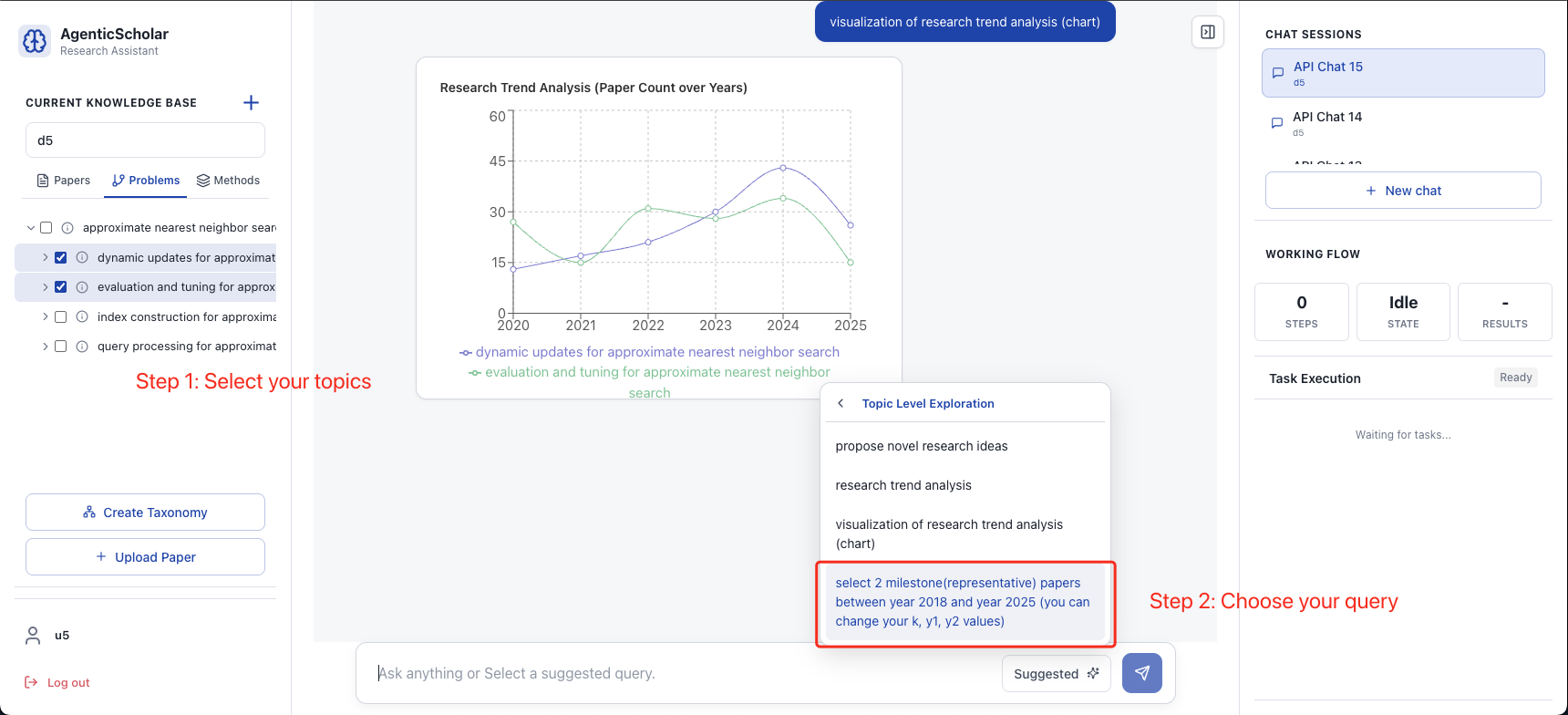
Select your topics for milestone paper.
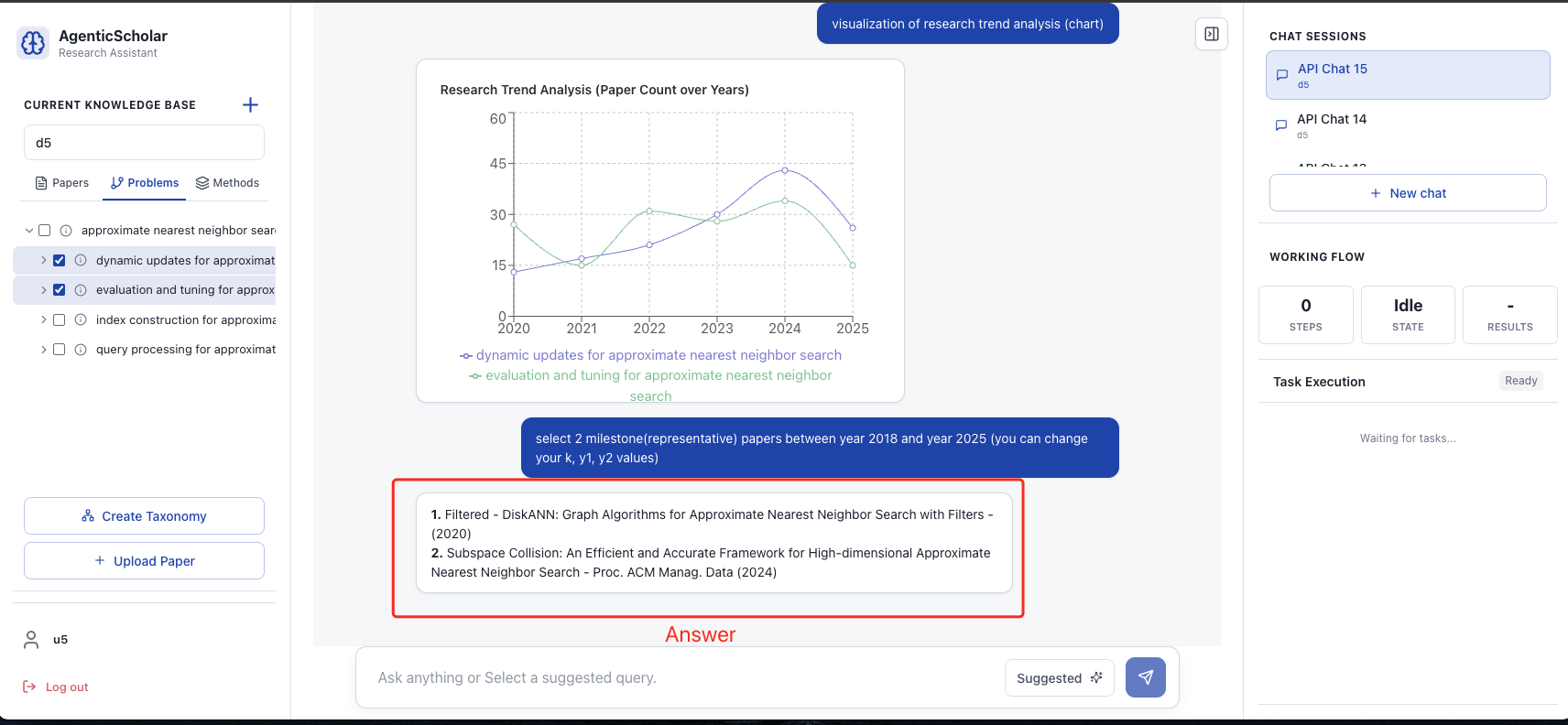
View the ranked list of milestone papers.
6.3.3 Discover New Research Ideas
Uncover gaps in the literature and generate potential research directions:
- In the taxonomy, select the topic(s) of interest.
- Open the Suggested queries and select Topic Level Exploration.
- Choose the query option for Discover New Research Ideas.
- The system generates a research proposal with new research ideas for you to consider.
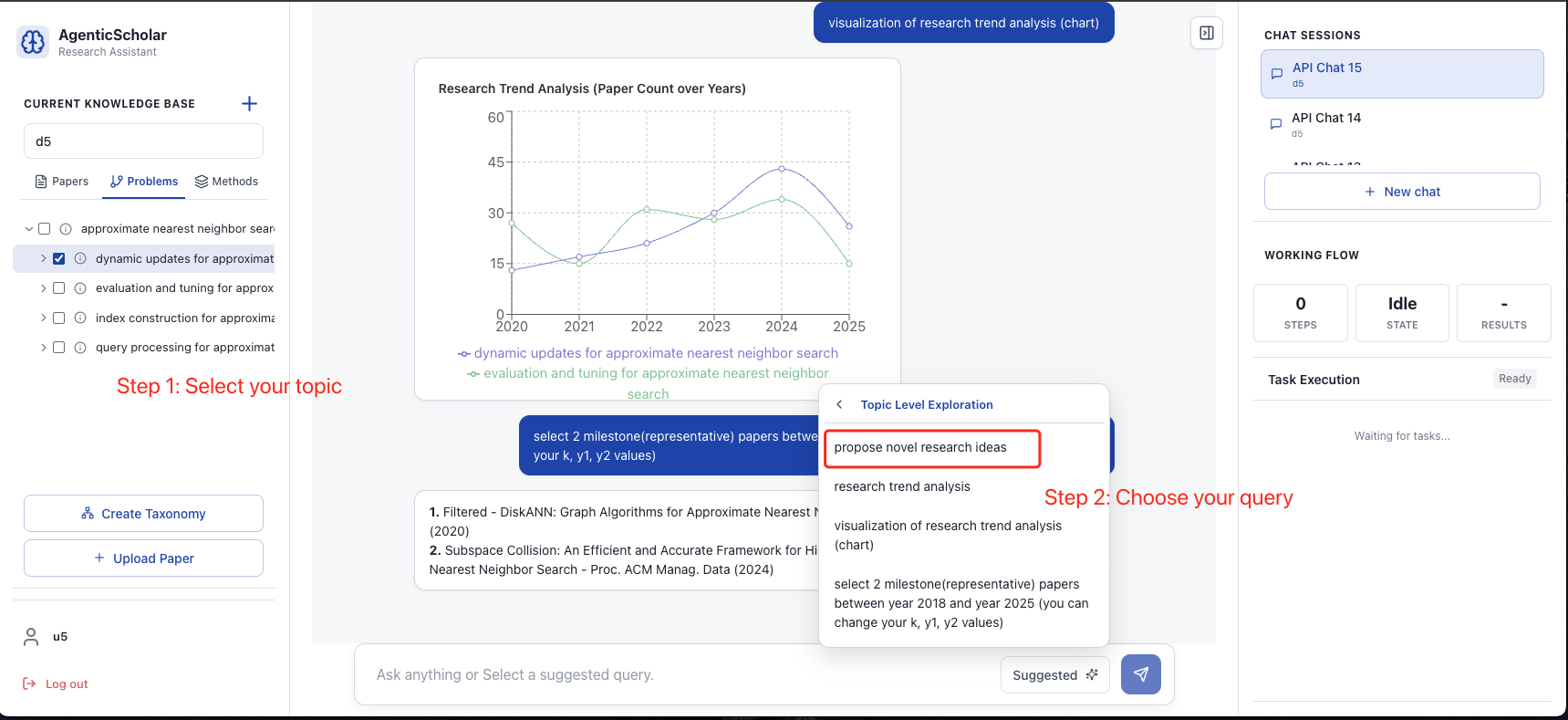
Select your topics for propose novel research ideas.
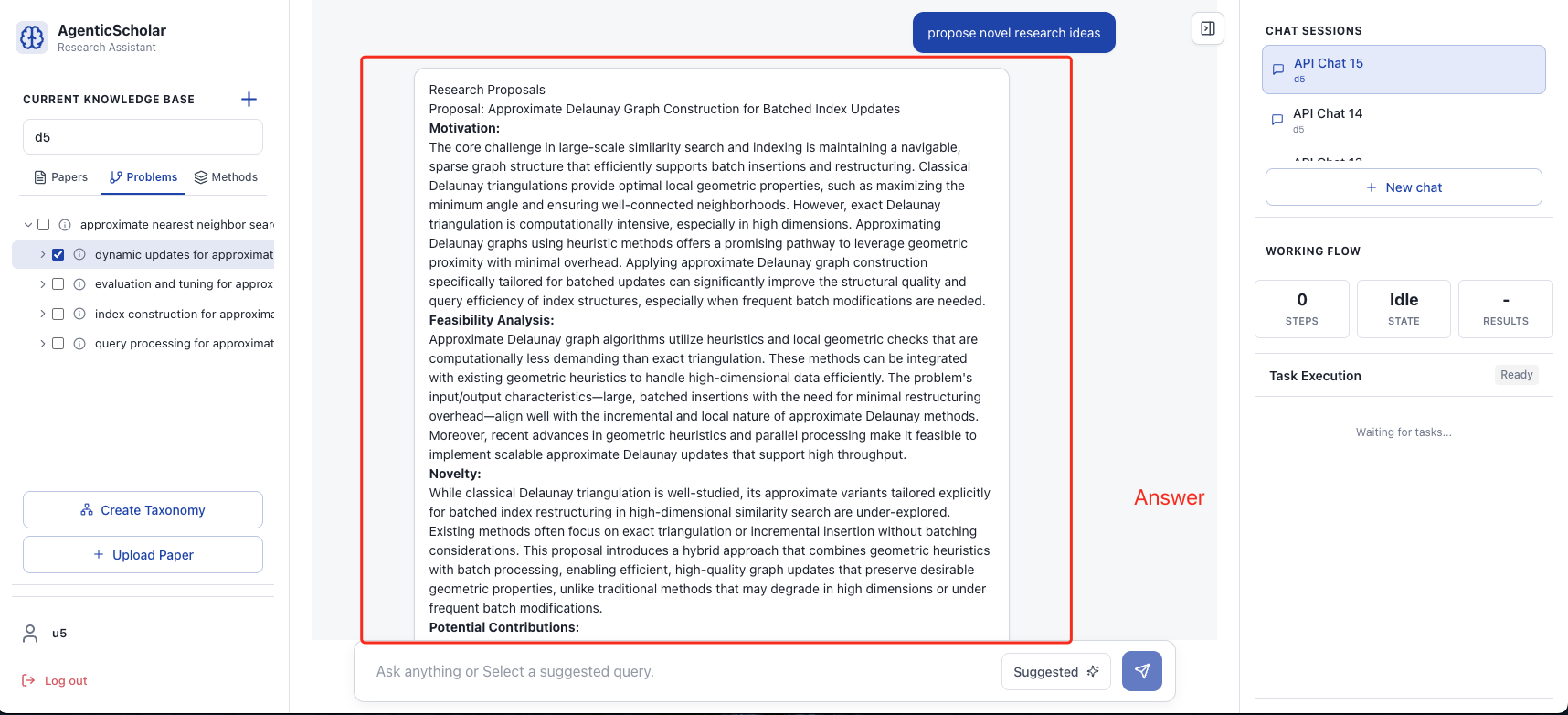
View the research proposal.